
Appearance
Bundle Builder
A powerful feature that allows customers to build custom bundles and unlock tiered discounts
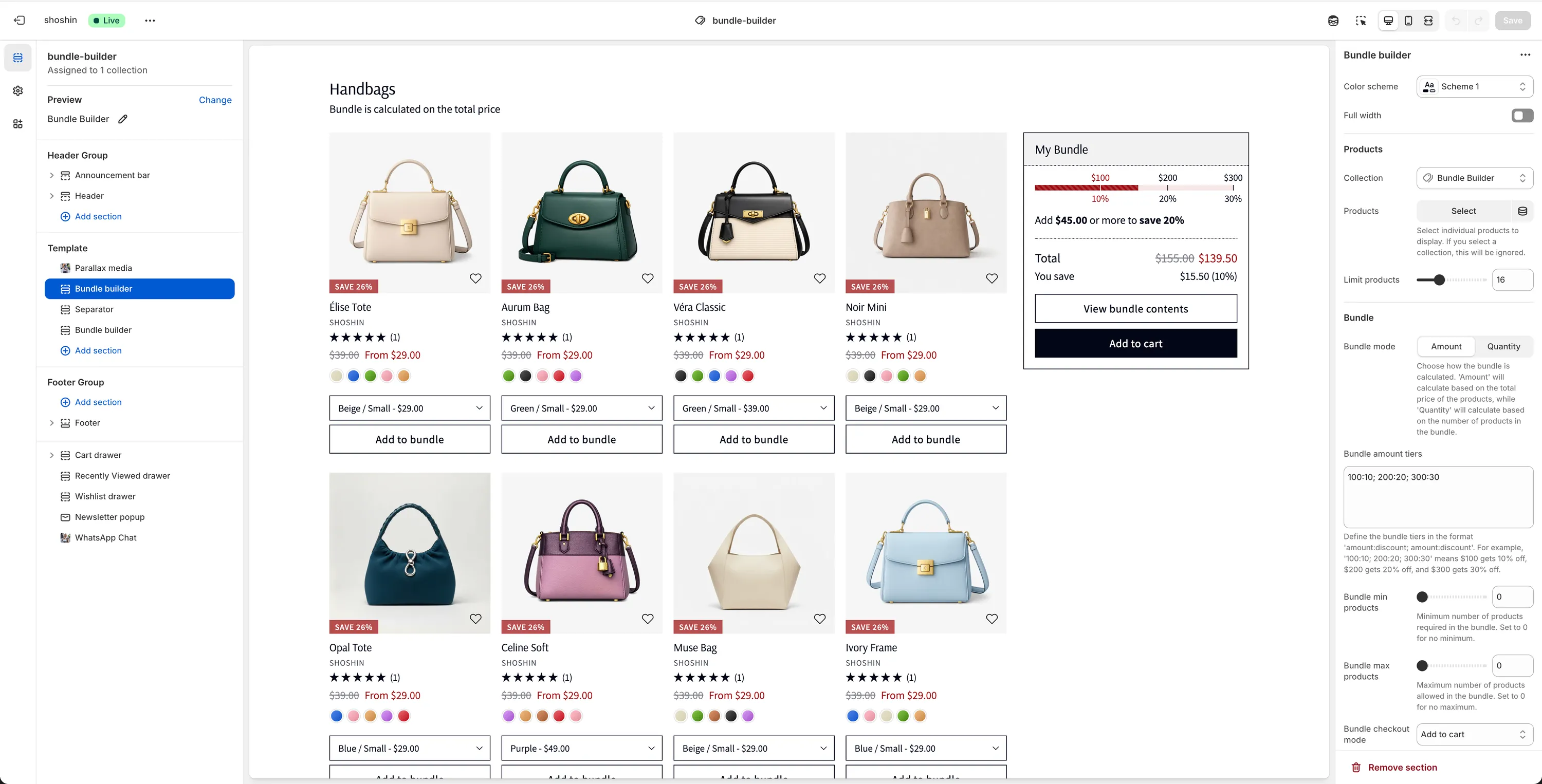
The Bundle Builder section enables you to offer customers a flexible and engaging way to create their own product bundles. Customers can add products to a bundle and instantly see the bundle contents displayed in a dedicated bundle card, typically positioned on the right side of the layout.
As customers add more items or increase the total value of the bundle, they progress through predefined discount tiers. This visual progression encourages higher-order values by motivating customers to reach the next discount threshold.
The Bundle Builder is an advanced and robust feature, and the following sections explain how to configure it in detail.
TIP
Note: The Bundle Builder section can be added to any page, not just collection pages. For example, you may choose to feature a full bundle-building experience directly on your homepage if it fits your store's strategy.
Configuration
In addition to the standard section settings (such as spacing and color scheme), the options below are specific to the Bundle Builder functionality.
Product Source
Collection
Select the collection from which products will be pulled. If the section is placed on a collection page, this setting can be left empty, as products will automatically be sourced from the current collection.
Products
Select individual products instead of using an entire collection.
Limit products
Restrict the maximum number of products displayed in the bundle builder.
Bundle Logic
Bundle mode
Determines how bundle tiers and discounts are calculated. Available options are:
- Amount – Bundle tiers are calculated based on the total price of the bundle.
- Quantity – Bundle tiers are calculated based on the number of products added to the bundle.
Bundle Tiers
Bundle amount tiers
Available only when "Amount" mode is selected.
Define tiers using the format: amount:discount; amount:discount
Example: 100:10; 200:20; 300:30
- Spend $100 → 10% off
- Spend $200 → 20% off
- Spend $300 → 30% off
WARNING
For each tier, a corresponding automatic discount must be created in Shopify.
Bundle quantity tiers
Available only when "Quantity" mode is selected.
Define tiers using the format: quantity:discount; quantity:discount
Example: 2:10; 3:20; 4:30
- 2 products → 10% off
- 3 products → 20% off
- 4 products → 30% off
WARNING
For each tier, a corresponding automatic discount must be created in Shopify.
Bundle Limits
Bundle min products – Minimum number of products required before customers can proceed to checkout. If the bundle contains fewer products, the Add to cart button is disabled. Set to
0to disable the minimum requirement.Bundle max products – Maximum number of products allowed in the bundle. Once this limit is reached, customers cannot add more products. Set to
0for no maximum.
Checkout Behavior
- Bundle checkout mode
- Add to cart – Adds the bundle contents to the cart, allowing customers to continue shopping.
- Direct checkout – Redirects customers directly to the checkout page to complete their purchase.
Creating the discounts
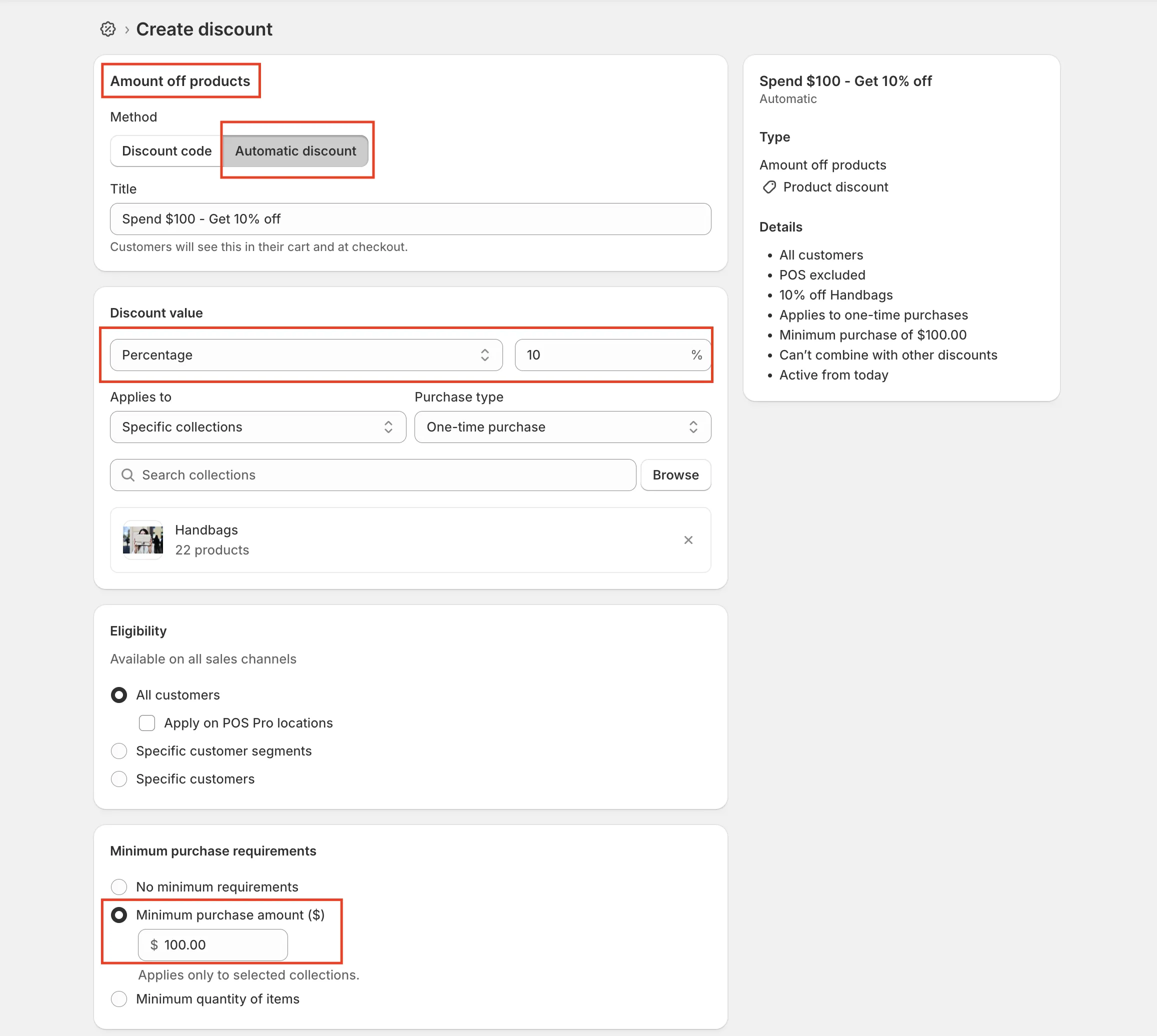
For every bundle tier you configure in the Bundle Builder, you must create a corresponding automatic discount in your Shopify admin. Use the table below as a reference when creating each discount.
Required Discount Settings
| Setting | Value |
|---|---|
| Method | Automatic |
| Discount value | Percentage (match tier %) |
| Minimum purchase requirements | Amount-based: Minimum purchase amount ($) Quantity-based: Minimum quantity of items |
Example: Amount-Based Bundle Tiers
If you have 3 amount-based bundle tiers, then you must create 3 automatic discounts for each:
| Tier | Amount | Discount | Shopify Discount Settings |
|---|---|---|---|
| 1 | $100 | 10% | Minimum purchase amount: $100, Discount: 10% |
| 2 | $200 | 20% | Minimum purchase amount: $200, Discount: 20% |
| 3 | $300 | 30% | Minimum purchase amount: $300, Discount: 30% |
Example: Quantity-Based Bundle Tiers
If you have 3 quantity-based bundle tiers, then you must create 3 automatic discounts for each:
| Tier | Quantity | Discount | Shopify Discount Settings |
|---|---|---|---|
| 1 | 2 | 10% | Minimum quantity of items: 2, Discount: 10% |
| 2 | 3 | 20% | Minimum quantity of items: 3, Discount: 20% |
| 3 | 4 | 30% | Minimum quantity of items: 4, Discount: 30% |
Important Notes
- Amount-based bundles require Minimum purchase amount ($) to be selected.
- Quantity-based bundles require Minimum quantity of items to be selected.
- The minimum value must exactly match the bundle tier defined in the Bundle Builder.
- Each bundle tier requires its own automatic discount.