
Appearance
Media
A simple yet versatile section for displaying images and videos with optional context.
The Media section is a straightforward way to showcase visual content on your store. Whether you want to display an image, MP4 video, or YouTube/Vimeo embed, this section makes it easy.
You can also add an optional title and description above the media to provide context or additional information. Each media type includes its own customization settings, giving you full control over how your content appears.
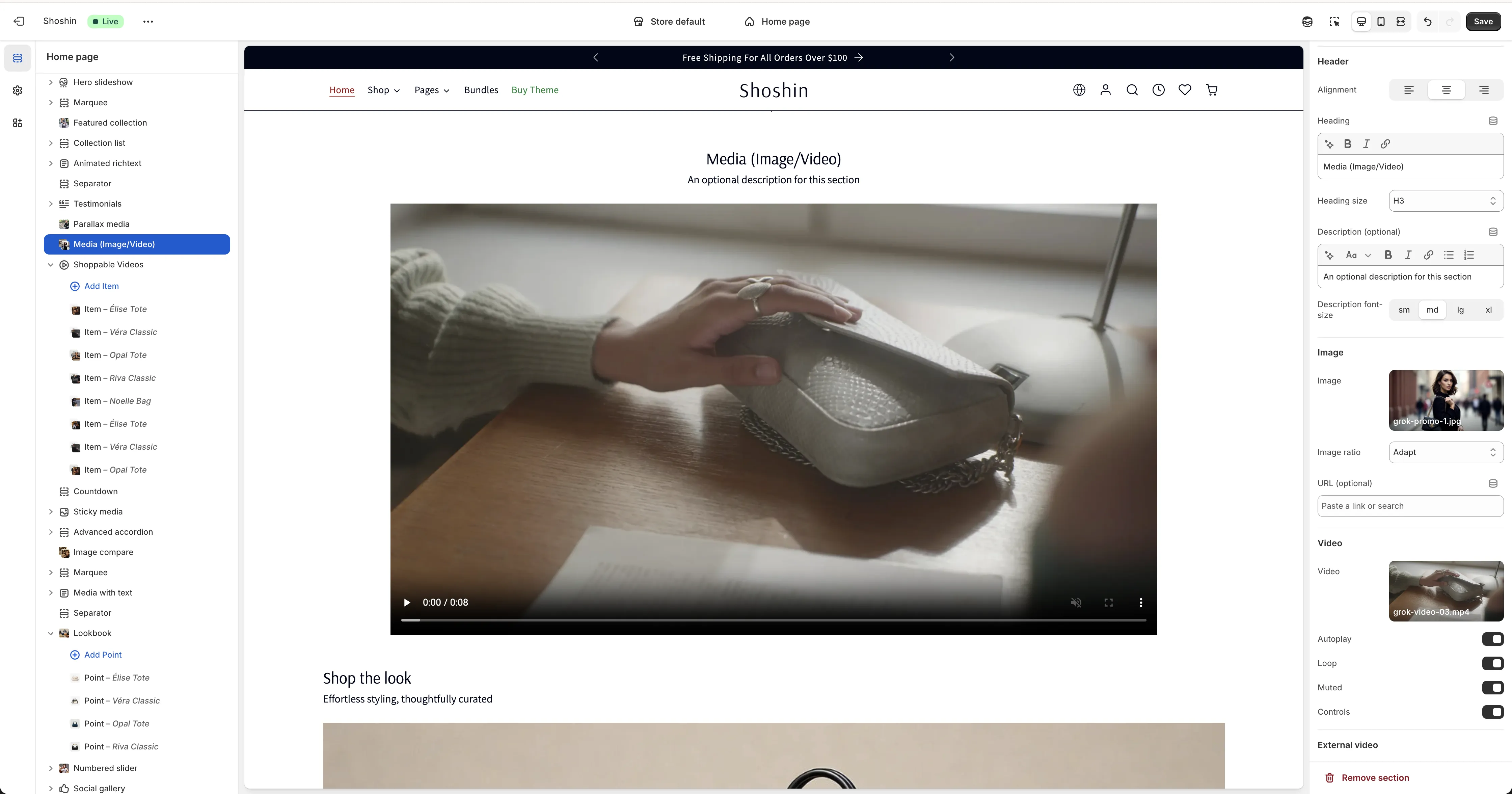
Configuration
The Media section offers comprehensive settings to customize your visual content display.
General Settings
Color Scheme - Select the color scheme for this section.
Container Max-Width - Set a custom maximum width for the container in pixels. Leave blank to use the default theme container width.
Spacing - Adjust the top and bottom padding for the section. This setting is located at the end of the section settings.
Header
Add an optional heading and description above your media:
Alignment - Control the text alignment for the header content.
Heading - Enter a heading to introduce your media.
Heading Size - Choose the heading size (H1-H6).
Description - Add an optional description to provide more context.
Description Font Size - Select from small, medium, large, or extra-large text sizes.
Media Type
Choose and configure the type of media you want to display. You can only use one media type at a time—select either an image, MP4 video, or external video.
Image
- Image - Upload your image file
- Image Ratio - Control the aspect ratio (adapt to image or set a fixed ratio)
- URL (Optional) - Add a link to make the image clickable
Video (MP4)
- Video - Upload your MP4 video file
- Autoplay - Enable to automatically play the video
- Loop - Enable to continuously loop the video
- Muted - Enable to mute the video audio
- Controls - Enable to show video playback controls
External Video
- Video URL - Enter a YouTube or Vimeo video URL to embed