
Appearance
Image compare
Allow customers to visually compare "before" and "after" images.
The Image Compare section lets customers compare two images using an interactive slider, typically positioned at the center of the image. By dragging the slider, users can seamlessly switch between the before and after states to clearly see differences and results.
This section is especially effective for industries where visual transformation matters, such as beauty, skincare, fitness, or home improvement. For example, you can show a model's face, hair, or skin before using a product and the result after application.
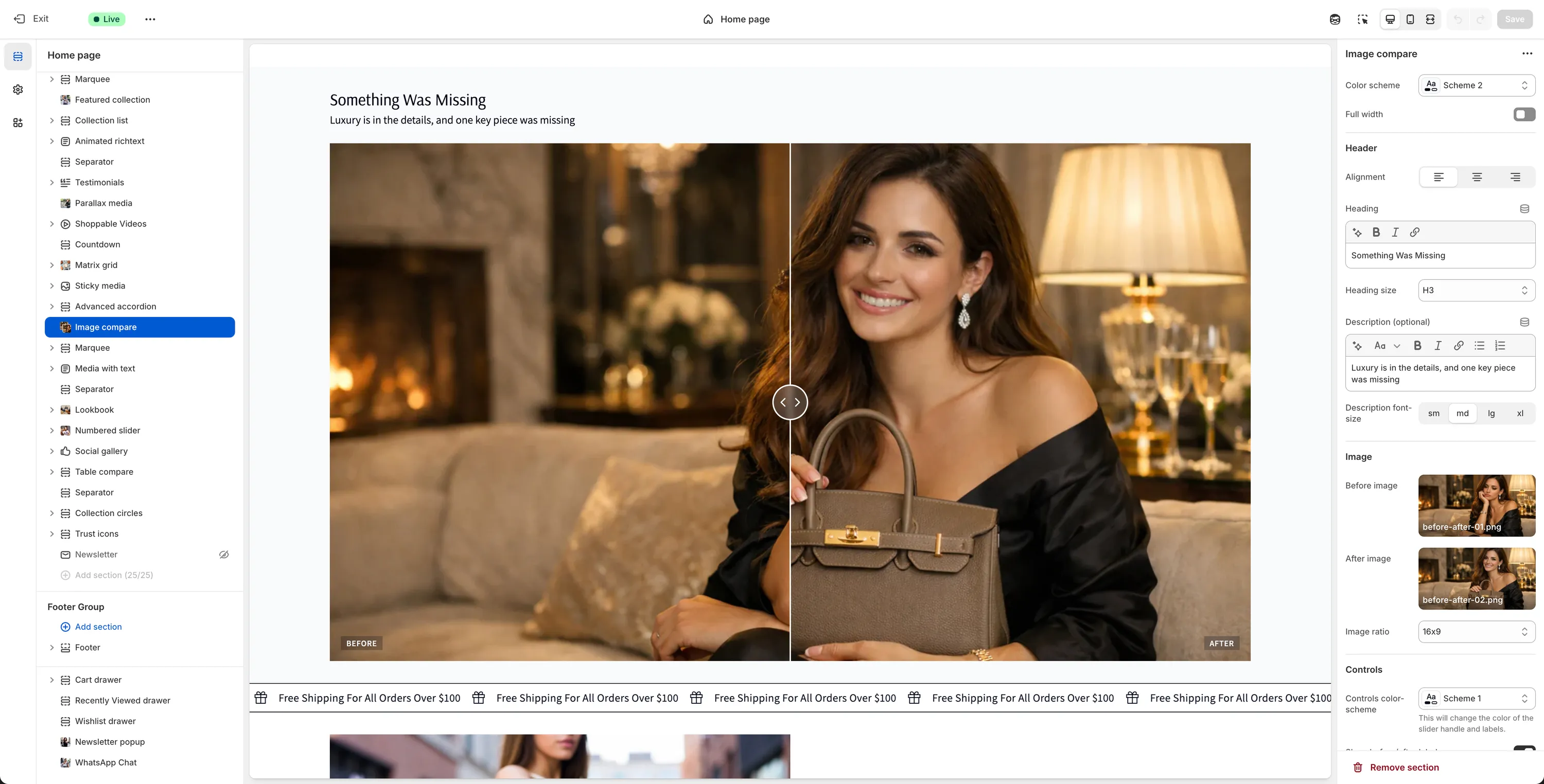
Configuration
In addition to the general section settings (such as color scheme, title, and description), the most important options for this section are the image-specific settings.
Before image
Upload the image representing the "before" state.After image
Upload the image representing the "after" state.
Important
Both images should have the same dimensions to ensure smooth slider behavior and accurate visual comparison.
- Image ratio
By default, images are displayed in their original dimensions. If needed, you can crop the images by selecting an image ratio from this setting.