
Appearance
FAQ
Frequently asked questions section with expandable question and answer blocks.
The FAQ section allows you to display commonly asked questions and answers in an organized, easy-to-navigate format. Each question can be clicked to expand and reveal the answer, providing a clean and user-friendly way to address customer inquiries.
Like many sections in our theme, the FAQ section has been significantly enhanced. The standout feature is the ability to organize your questions into groups. For example, you can create separate groups for "Shipping & Delivery," "Payments," "Returns," and more. Each group can then contain its own set of questions and answers, making it easier for customers to find the information they need.
This section is ideal for product pages, landing pages, or dedicated FAQ pages where you want to provide helpful information without overwhelming visitors with too much text at once.
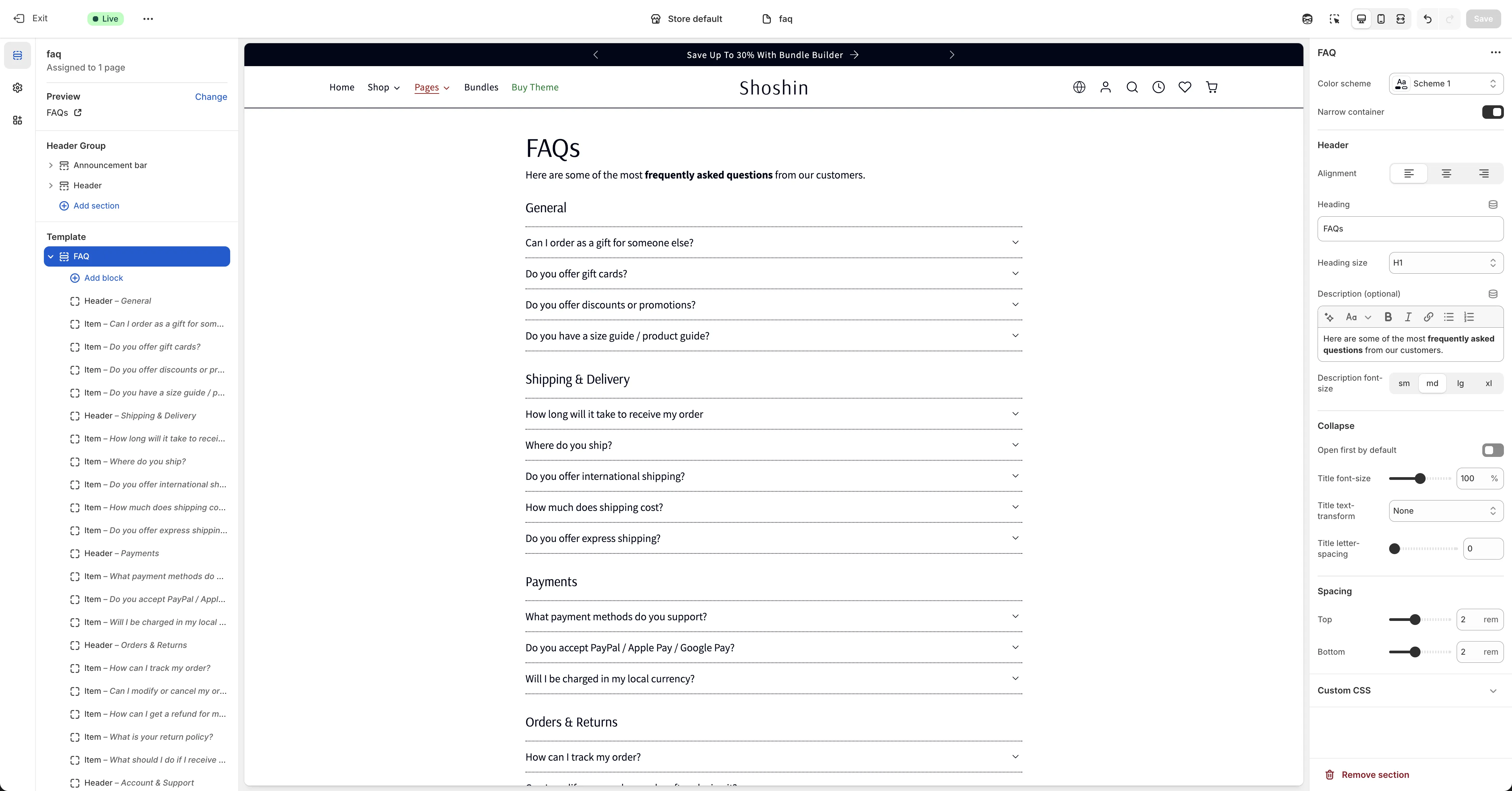
Configuration
The FAQ section uses standard section settings for styling and appearance. Since these are straightforward to understand, we'll focus on how to add and organize your FAQ content.
Block Types
The FAQ section supports two types of blocks that you can mix and match to create your desired layout:
Header Block
Use header blocks to organize your FAQs into logical groups or categories. For example, you might create headers for "Shipping & Delivery," "Payments," "Returns & Refunds," etc.
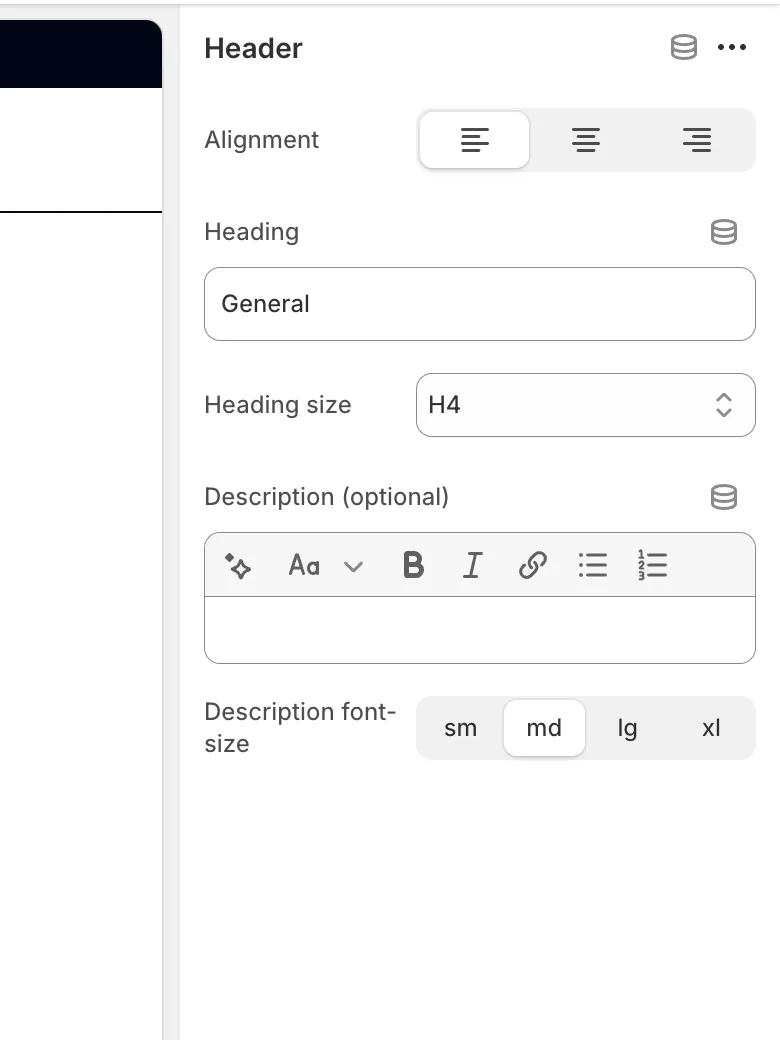
When to use: If you want to organize FAQs into distinct categories, add a header block before each group of related questions.
Optional: If you prefer a simple list of FAQs without grouping, you can skip headers entirely and just add item blocks.
Item Block
Each item block represents a single question and answer pair. This is where you'll add the actual FAQ content.
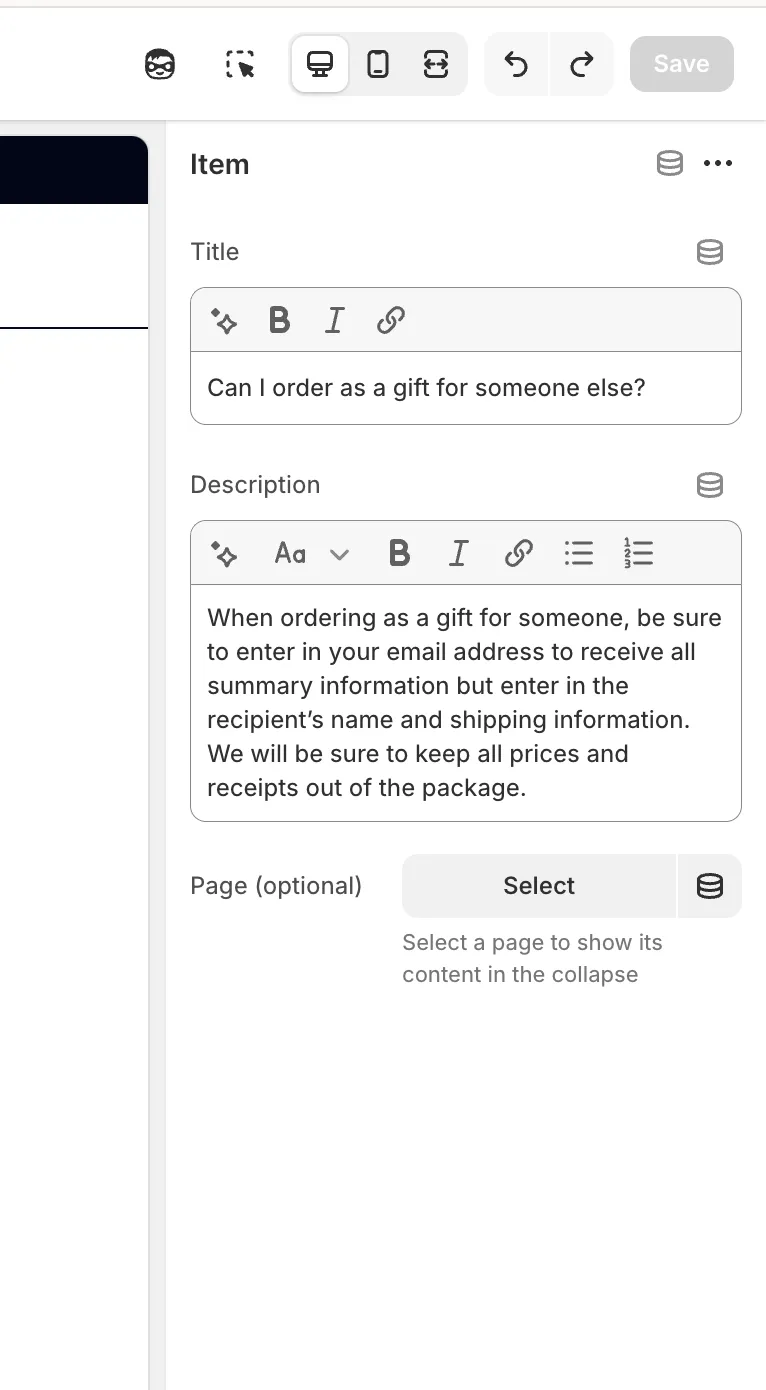
Title: Enter the question text that customers will see. Keep it clear and concise.
Description: Provide the detailed answer. This field supports rich text formatting, so you can include links, bold text, lists, and other formatting to make your answers more helpful.
How to Add FAQs
Add a header block (optional) - Click "Add block" and select "Header" to create a category group. Enter a descriptive title like "Shipping & Delivery."
Add item blocks - Below your header (or directly in the section if not using headers), click "Add block" and select "Item." Fill in the question and answer fields.
Repeat - Continue adding headers and items to build out your complete FAQ section.
Tip: Group related questions together under relevant headers to make it easier for customers to navigate and find the information they need.