
Appearance
Color swatches
Improve the user experience by displaying visual color swatches instead of standard text-based variant options.
Shopify recently introduced native color swatches, removing the need for older workaround solutions. With our premium theme, this feature is fully supported and implemented the Shopify-recommended way, using metaobjects.
If terms like metafields or metaobjects sound intimidating, don't worry. The underlying logic is straightforward, and once set up, it's easy to maintain and scale across products.
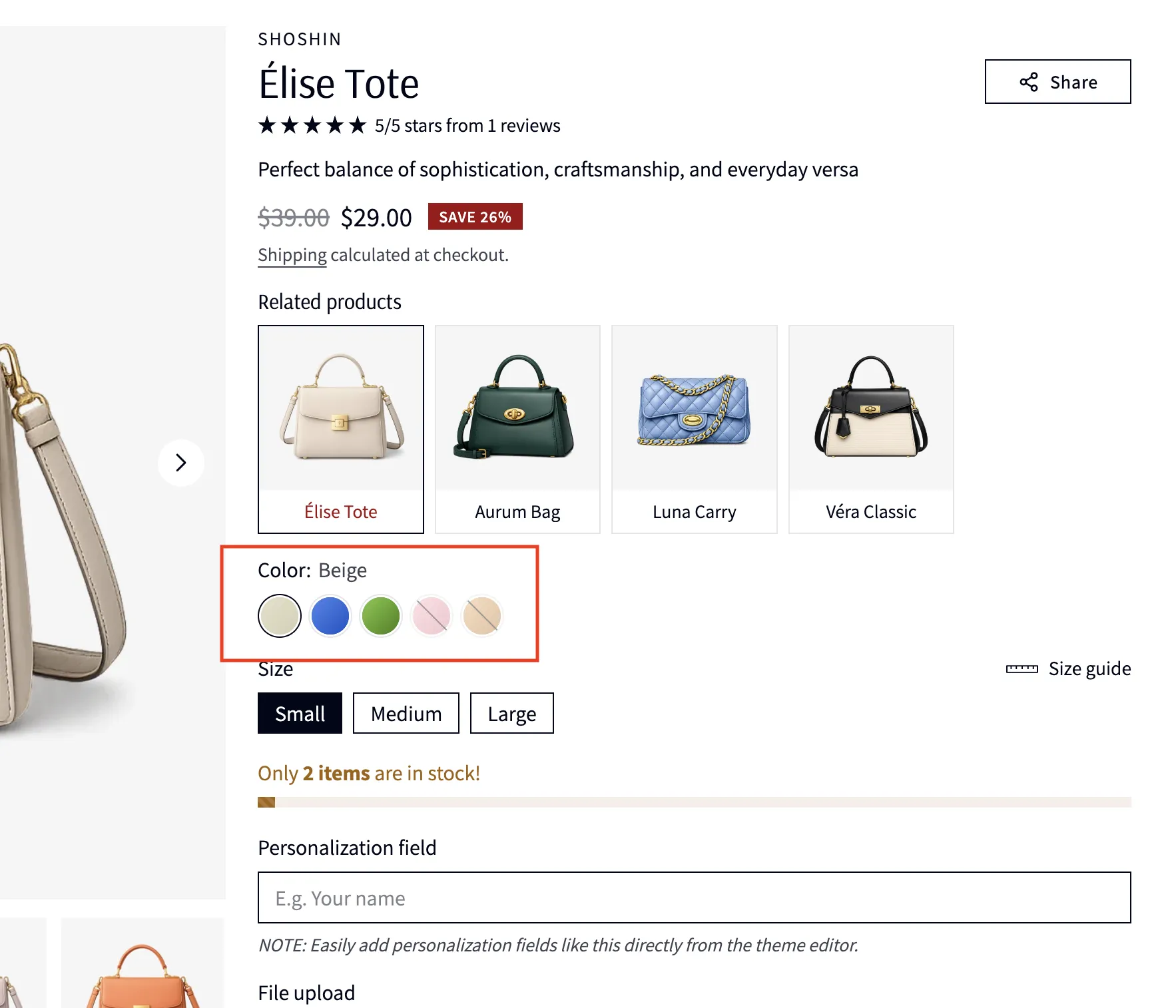
How to add color swatches
INFO
Shopify provides an official and detailed guide for this setup. For in-depth explanations, refer to:
For a visual walkthrough, you can watch the official video created by the Shopify team, or continue below with our tutorial.
1. Assign the Correct Product Category
WARNING
Shopify enables category metafields only when a product has a category.
- Go to Products → Select a product
- In the Product category field, choose the most relevant category (for example: Bags & Accessories → Handbags)
- Save the product
Once a category is assigned, Shopify automatically unlocks relevant metafields, including Color.
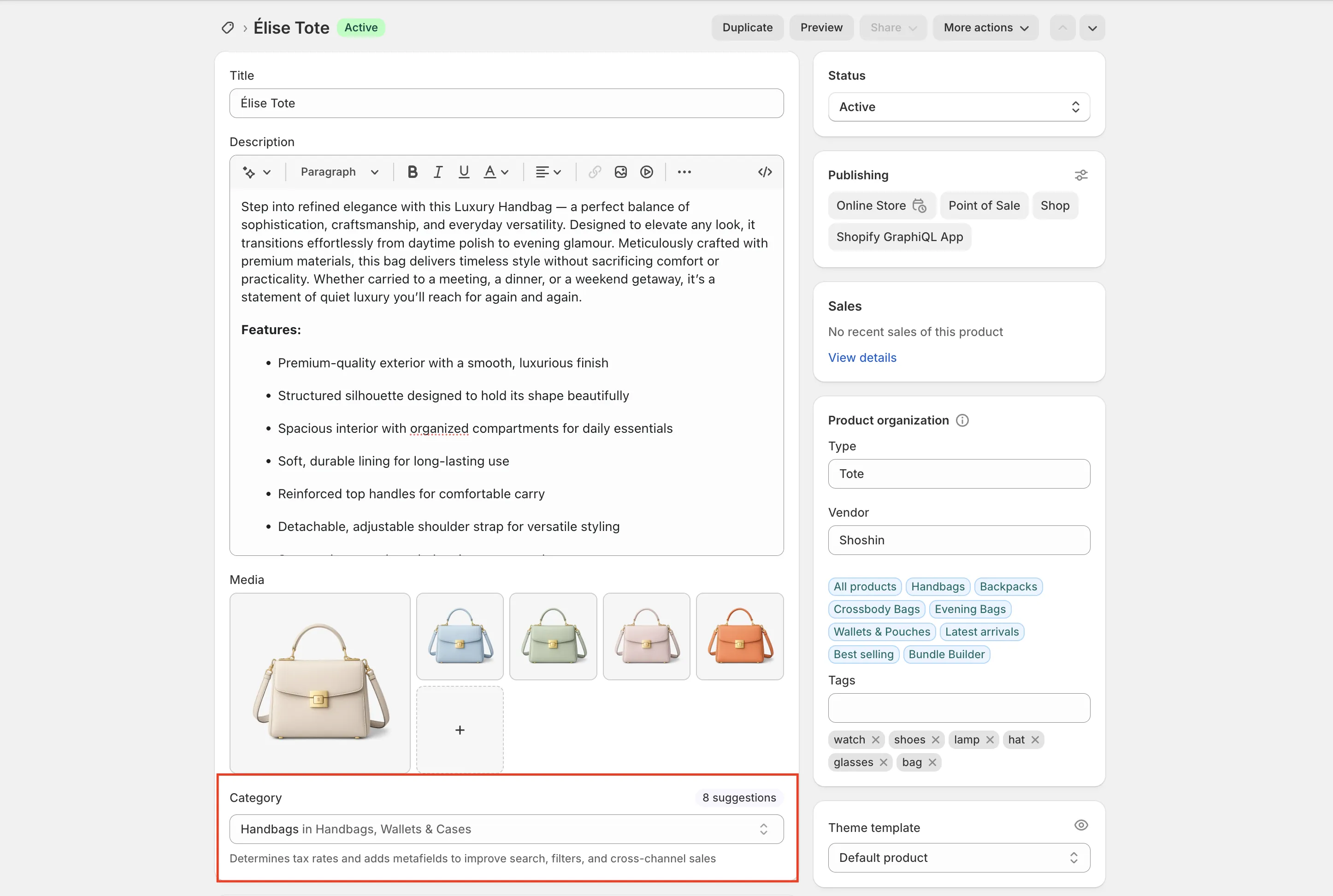
2. Use "Color" as a Variant Option Name
Your product variants must use Shopify's expected naming.
- Variant option name must be exactly: Color
- Variant values should be human-readable, for example:
- Black
- Brown
- Beige
- Red
This is important, as Shopify links the Color variant to its internal color metafield logic.
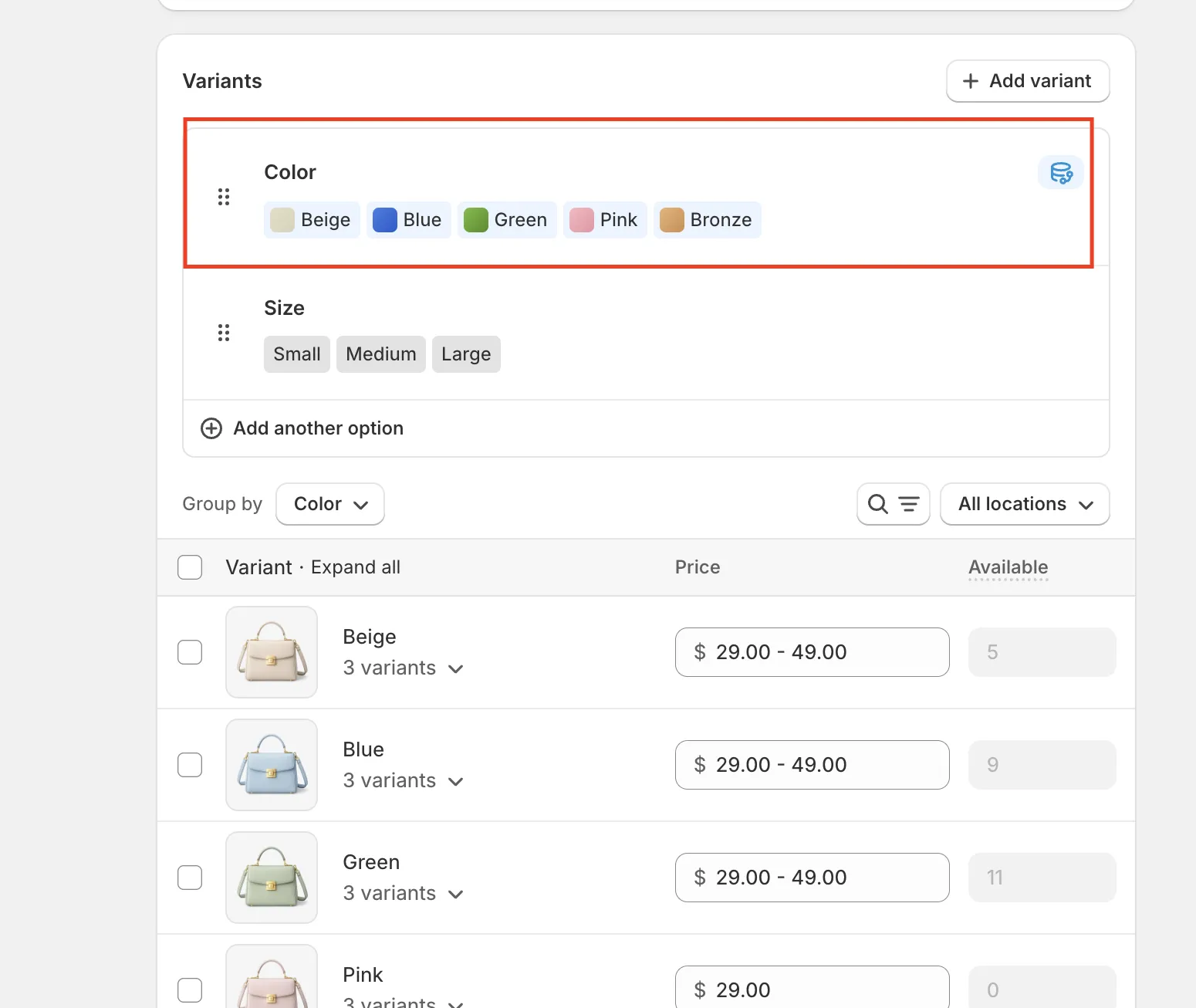
3. Set Up the Color Metafield Values
After assigning a category:
- Scroll to the Metafields section of the product
- Find the Color metafield
- Assign the appropriate color entry to match each variant
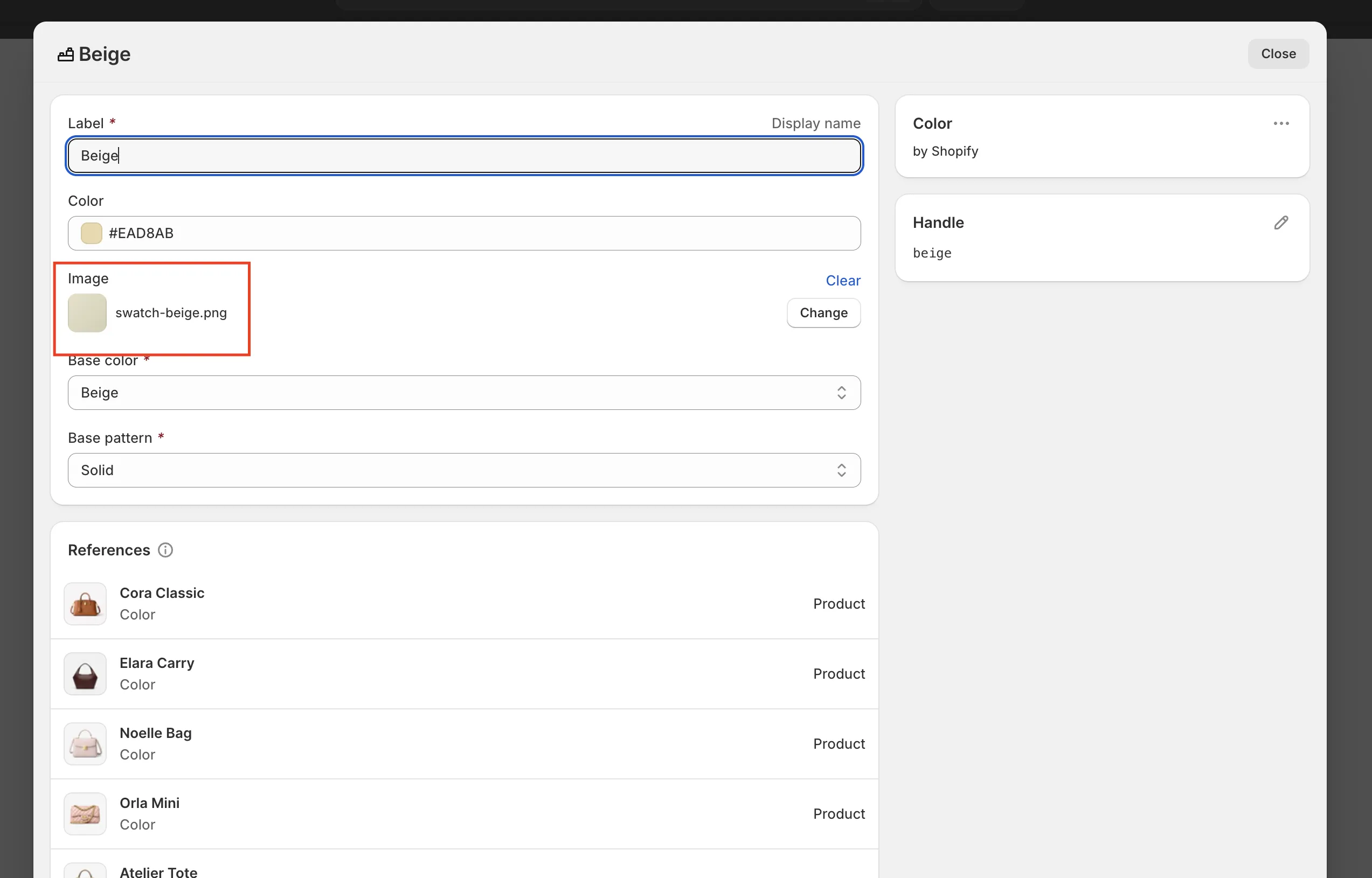
These color entries are powered by metaobjects, which can include:
- A color value (hex)
- A swatch image
- A label (used as fallback or for accessibility)
You only need to create each color once. After that, it can be reused across all products.
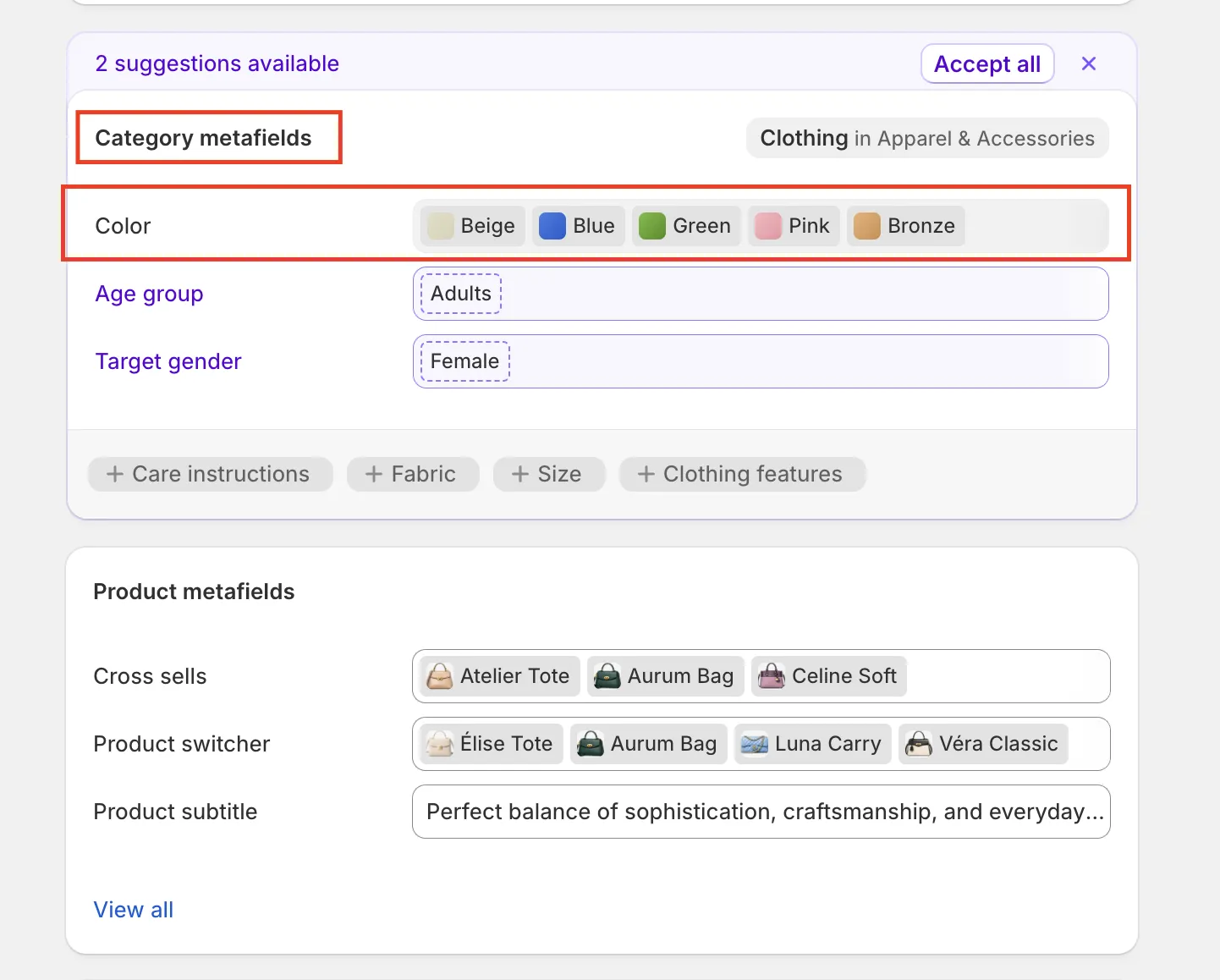
4. Add Swatch Images (Optional but Recommended)
For patterns, textures, or non-solid colors:
- Upload a small square image (recommended 50×50 or 100×100)
- Shopify will automatically use the image instead of a flat color
Our theme detects this automatically and displays the correct swatch style without extra configuration.
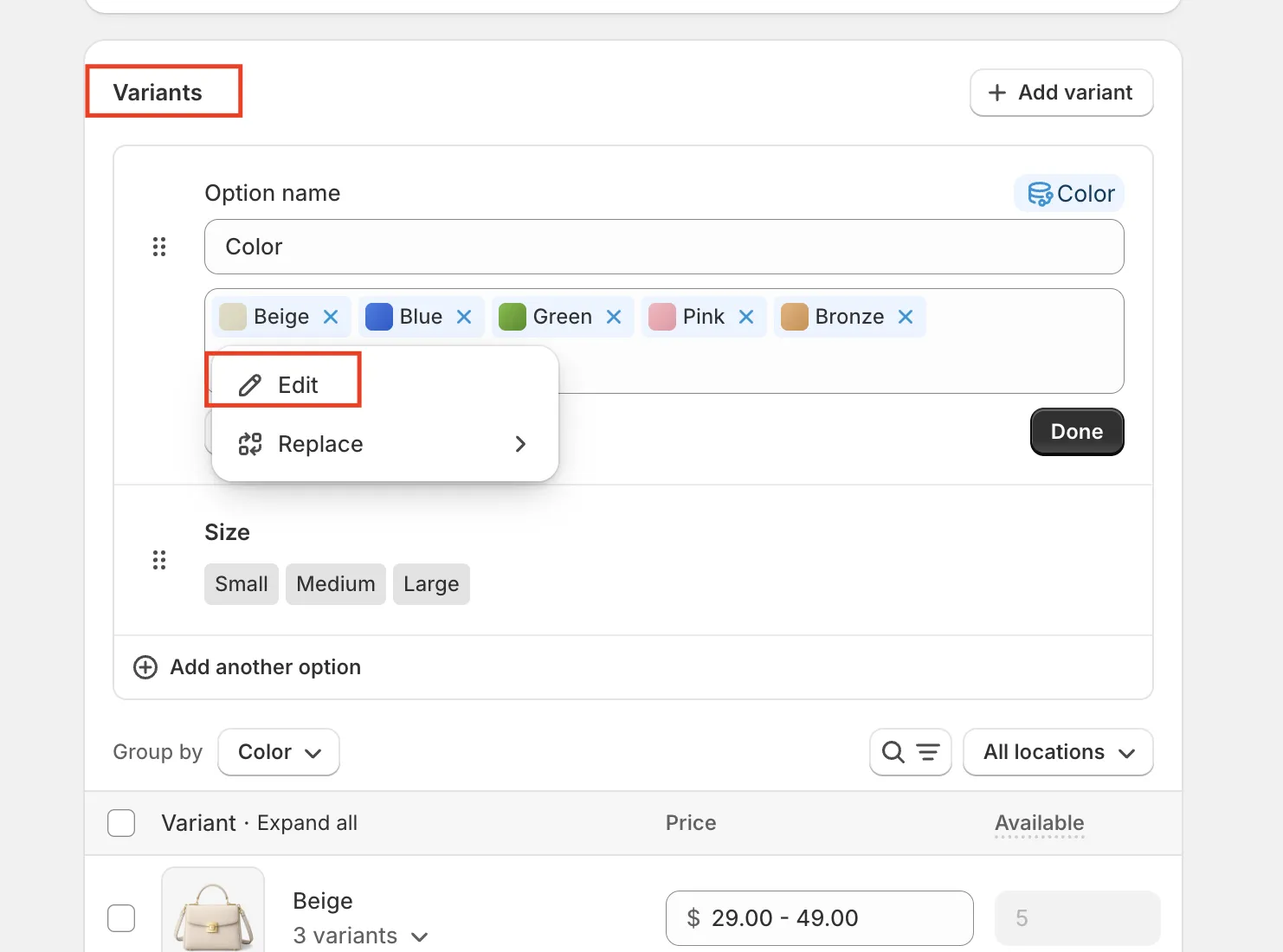
5. Save and Preview
Once everything is connected:
- Save the product
- Visit the product page on the storefront
- The Color variant will now appear as visual swatches instead of text
No additional theme settings or custom code are required.
How the Theme Handles This
- Fully compatible with Shopify category metafields
- Automatically switches between color swatches and image swatches
- Includes accessible labels and keyboard support
- Gracefully falls back to text if a swatch value is missing
This ensures your store stays future-proof and aligned with Shopify's official data model while delivering a premium user experience.