
Appearance
Whatsapp chat
Enable customers to connect with your store via WhatsApp
The Whatsapp chat section lets you integrate a WhatsApp messaging widget into your Shopify store. This provides a convenient and familiar communication channel for customer inquiries, support, and engagement. The widget offers flexible display modes and comprehensive styling options to match your store's aesthetic.
The Whatsapp chat offers two modes of operation:
Direct mode - Clicking the button opens WhatsApp directly with your business phone number pre-filled, allowing customers to start chatting immediately without additional steps.
Modal (Dialog) mode - Clicking the button opens a customizable modal popup where customers can view your initial greeting message and additional information before composing their first message. Once they submit their message, it opens WhatsApp with their message pre-filled.
The Whatsapp chat is perfect for:
- Providing real-time customer support through a familiar messaging platform
- Enabling direct WhatsApp communication without leaving your store
- Increasing customer engagement and response rates
- Building relationships through personalized communication
- Creating a more accessible shopping experience with flexible contact options
- Allowing flexible styling and color customization to match your brand
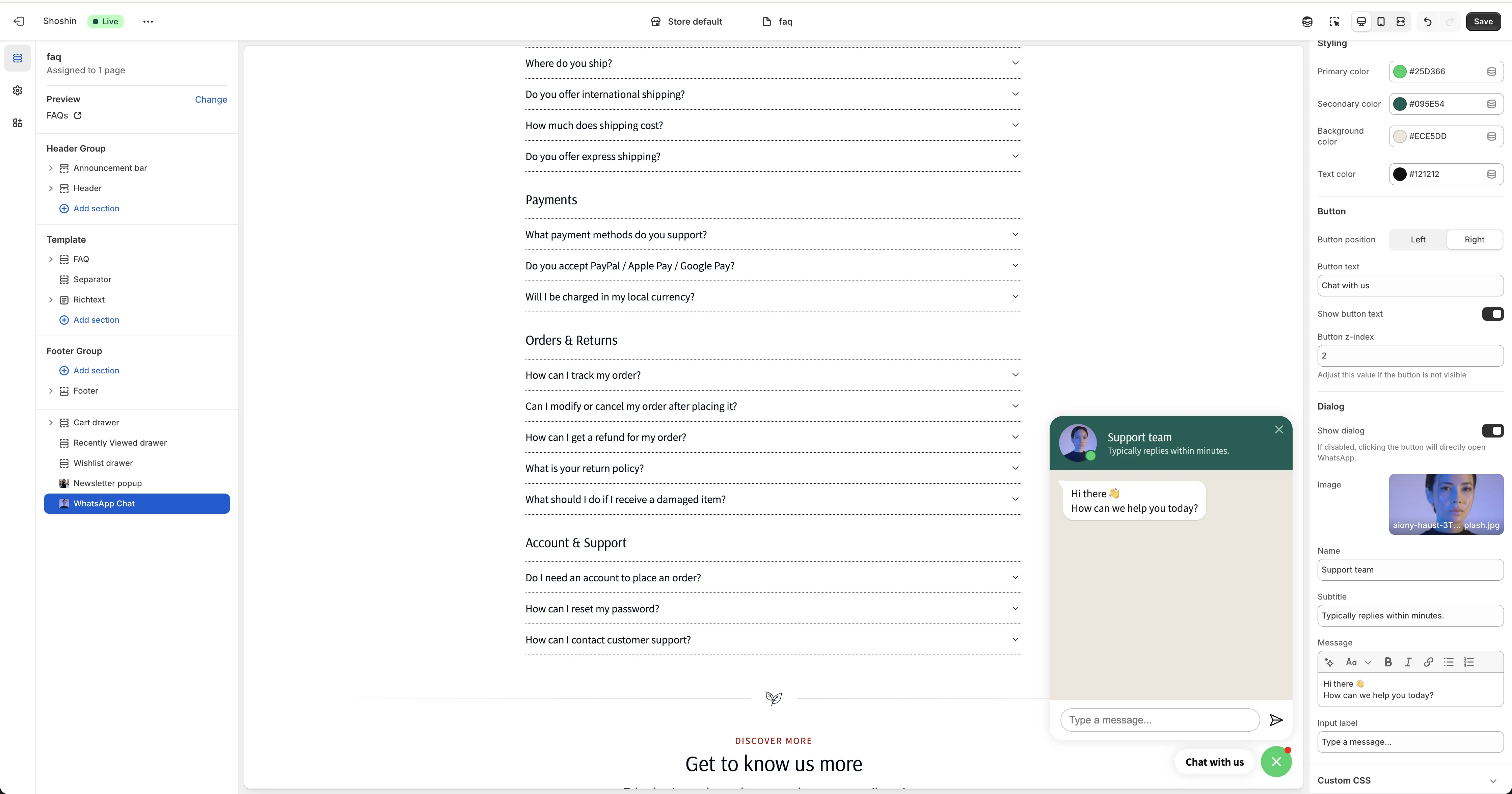
Configuration
The Whatsapp chat section includes comprehensive settings to customize the widget appearance, functionality, and messaging.
Enable this section - Turn the WhatsApp chat widget on or off for your store.
WhatsApp number - Enter your WhatsApp business phone number in the correct format for wa.me links:
- Use the international format without spaces, dashes, or special characters
- Format:
[country code][phone number] - Do not include the
+symbol - Examples:
- US:
12345678900(for +1-234-567-8900) - Brazil:
5511987654321(for +55-11-98765-4321) - UK:
442071838750(for +44-20-7183-8750)
- US:
For detailed format information, refer to wa.me links documentation.
Styling
Customize the widget colors to match your store's branding:
Primary color - The main accent color for the widget. Default: #25D366 (WhatsApp green).
Secondary color - Complementary color used for highlights and hover states. Default: #095E54.
Background color - The background color for the dialog/popup window. Default: #ECE5DD.
Text color - The color of text throughout the widget. Default: #121212 (dark gray).
Button
Control the appearance and behavior of the WhatsApp button:
Button position - Choose where the button appears on the screen. Options: Left or Right (always positioned at the bottom).
Button text - Customize the label displayed on the button. Default: Chat with us.
Show button text - Toggle to display or hide the text label on the button (icon-only mode when disabled).
Button z-index - Adjust the stacking order if the button appears behind other elements. Default: 2.
Dialog
Configure the modal/popup that appears when customers click the button:
Show dialog - When enabled, displays a modal window with your greeting and message before opening WhatsApp. When disabled, clicking the button directly opens WhatsApp.
Image - Upload an agent profile picture or company logo to display at the top of the dialog.
Name - The name of the agent or company representative (e.g., "Customer Support Team").
Subtitle - A brief subtitle or availability message (e.g., "Typically replies within minutes").
Message - The initial greeting message shown to customers in the dialog (e.g., "Hi! How can we help you today?").
Input label - The placeholder text for the customer's message input field. After the customer enters their message and clicks submit, it will redirect them to WhatsApp with their message pre-filled.
Tips & Best Practices
Choose the right mode - Use Direct mode for quick, frictionless support when customers already know what they need. Use Modal (Dialog) mode to provide context, set expectations, and guide customers before they reach out.
Optimize your greeting message - Keep it friendly and concise. Let customers know your typical response time (e.g., "Typically replies within an hour") to set proper expectations.
Use a professional image - Upload a clear agent photo or company logo for the dialog. This builds trust and makes customers feel more comfortable reaching out.
Stick with WhatsApp colors - We recommend using the default WhatsApp colors (#25D366 green and #095E54 for accents) since customers immediately recognize them as WhatsApp. This creates trust and clarity. Only customize colors if you want to match your brand identity exactly, as custom colors may reduce immediate recognition.
Position strategically - Consider your page layout when choosing button position. Right is typically more visible, but Left may work better if it doesn't overlap with important content.
Test both modes - Try both Direct mode and Modal (Dialog) mode to see which works better for your customer base and support workflow.
Keep z-index in mind - If the button appears behind sticky elements (like floating headers), increase the Button z-index value to ensure it stays on top.